Contacts
Quick Overview
The Contacts page allows you to manage your customer directory. You can add contacts manually, import lists in bulk, search for specific people, and start new WhatsApp chats directly from here.
Managing Contacts
Select a tab below to learn how to manage your contact directory:
- Add Contacts
- Import from File
- Search & Chat
- Edit Info
You can add contacts in two ways:
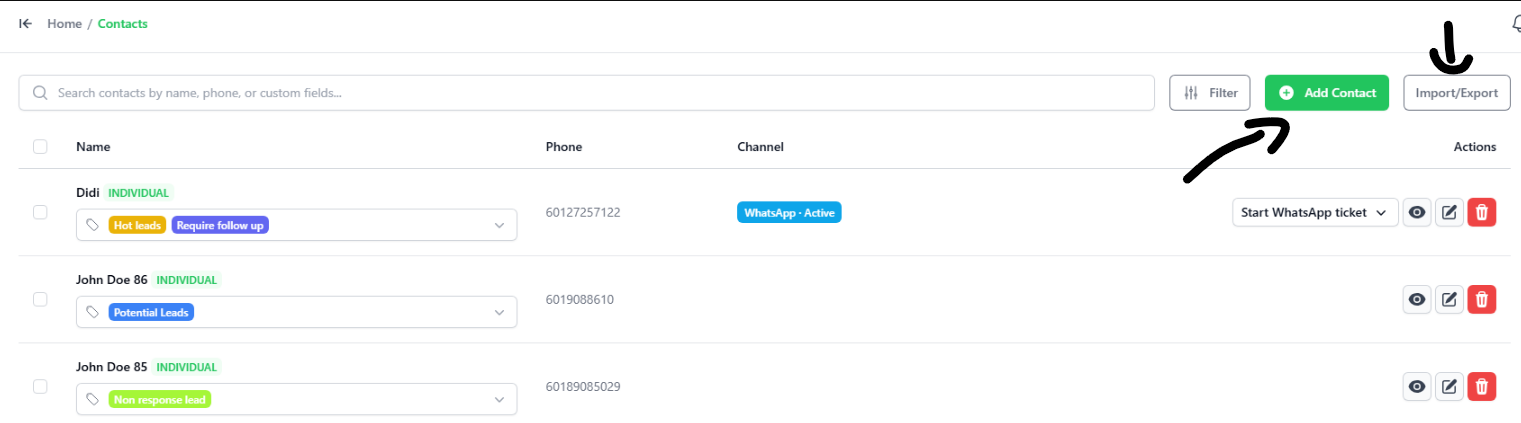
- Manually: Click the green + Add Contact button to type in their details.
- Import/Export: Import many contacts at once using a file, or download your contact list.
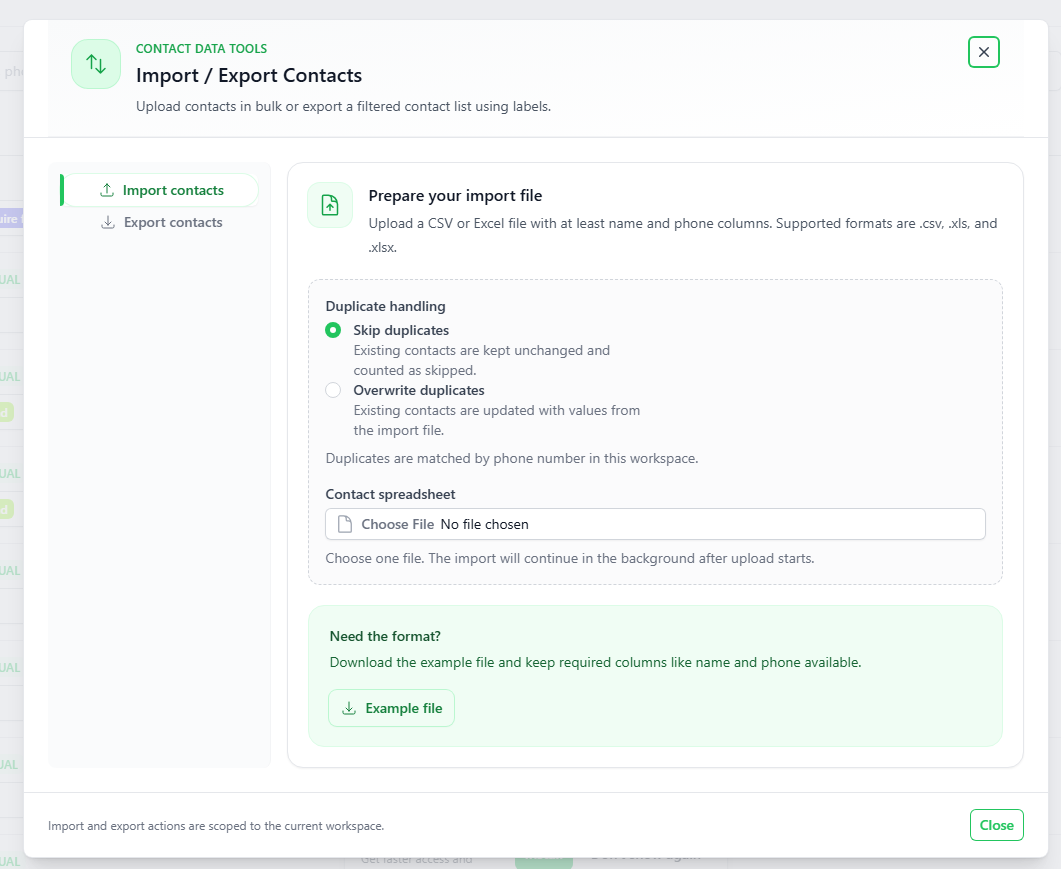
To upload a list of contacts:
- Click the Import/Export button at the top-right.
- Click Import contacts.
- Choose how to handle duplicates:
- Skip duplicates: Keep existing contacts and skip matching ones in the file.
- Overwrite duplicates: Update existing contacts with the new info from the file.
- Click Choose File to upload your CSV or Excel (.xls, .xlsx) file.
Template File
If you need a template, click the green Example file button to download a sample spreadsheet.
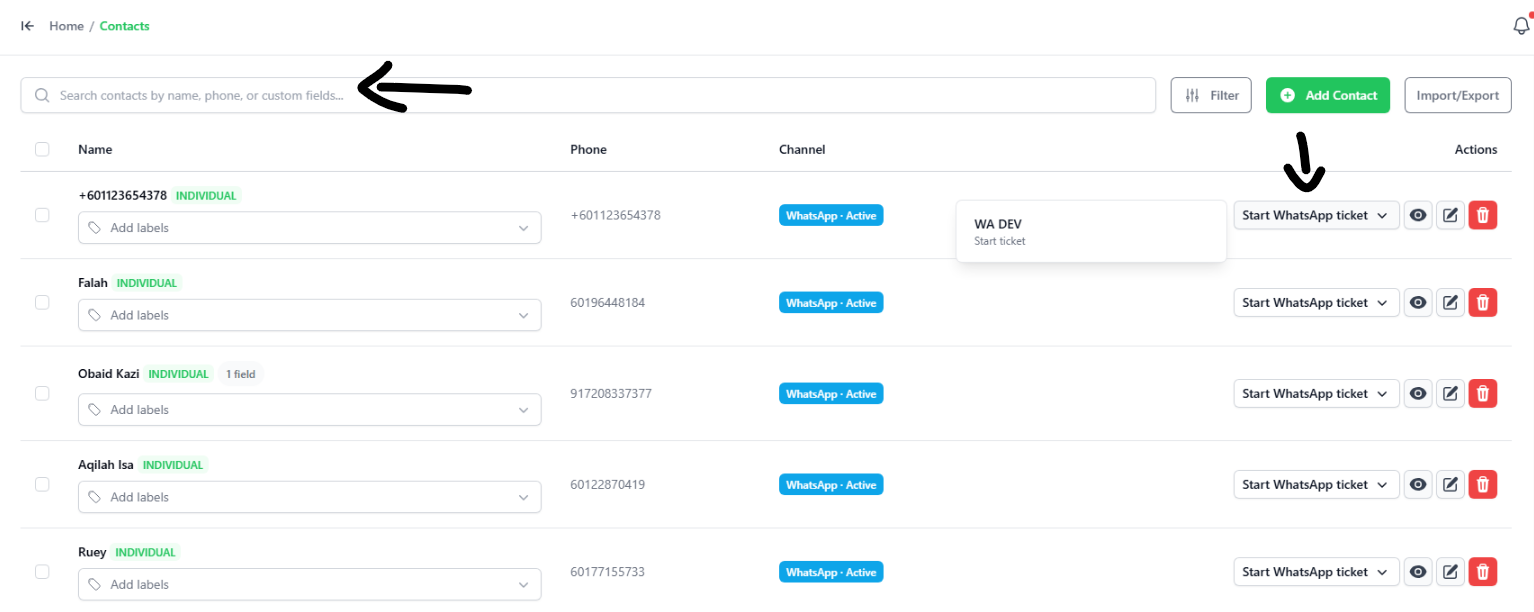
- Search: Use the search bar at the top to type a contact's name or phone number.
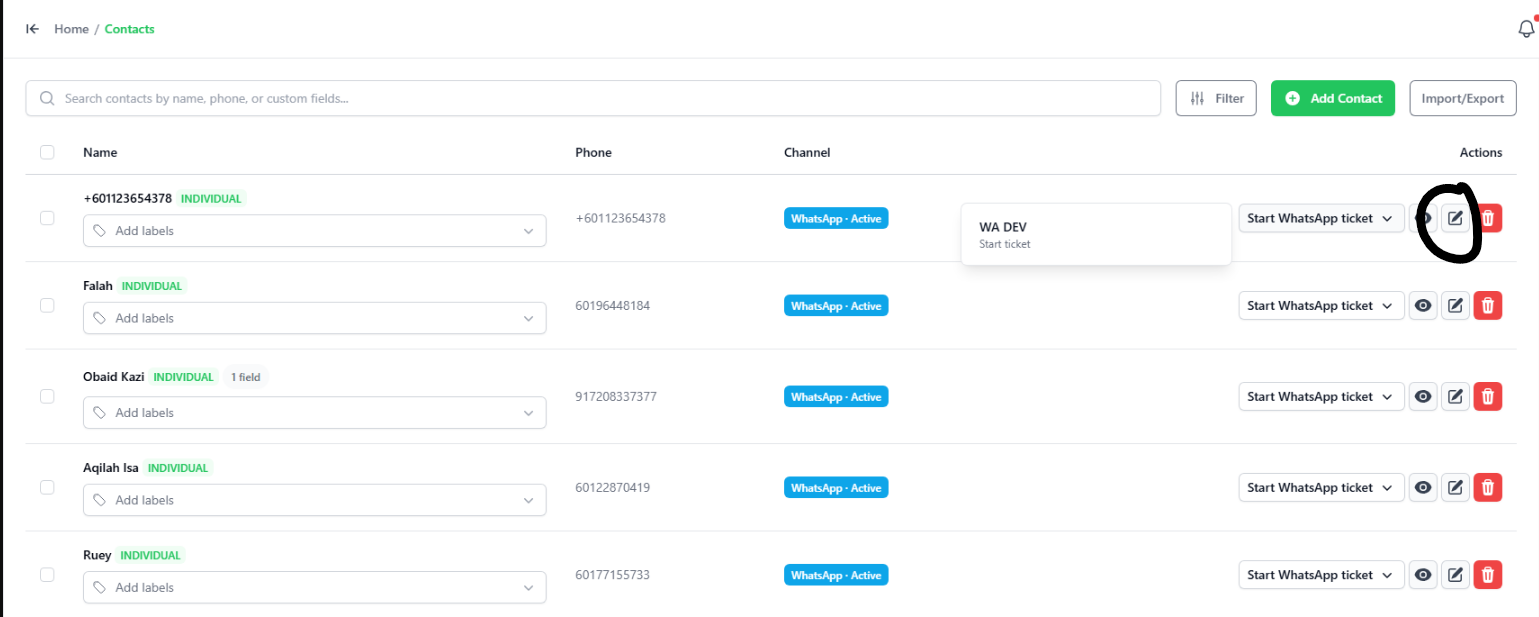
- Start a Chat: Find the contact in the list, then click the Start WhatsApp ticket button under the Actions column. This opens a new chat with them.
-
Click the Pencil icon next to the contact you want to change.
-
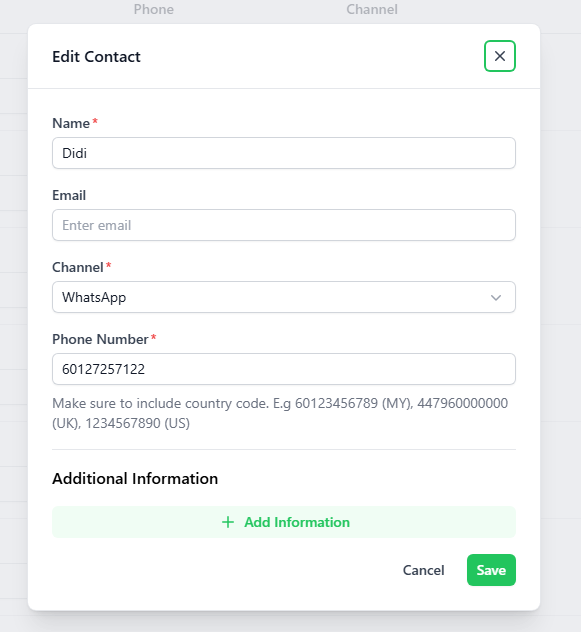
Update their Name, Email, or Phone Number.
noteYou cannot edit group contacts.
-
Click the green Save button.
Important: Country Code
Always put the country code first when adding or editing phone numbers.
- Example (Malaysia): start with
60(like60123456789). - Do not put
+in front.