Permissions
Quick Overview
The Permissions page allows you to create custom roles (like "Frontdesk" or "Manager") and define exactly what actions those users are allowed to perform within the system.
Managing Permission Groups
- Create Group
- View Assigned Permissions
- Go to the Permissions tab.
- Click the green + Add New Group Permission button in the top-right.
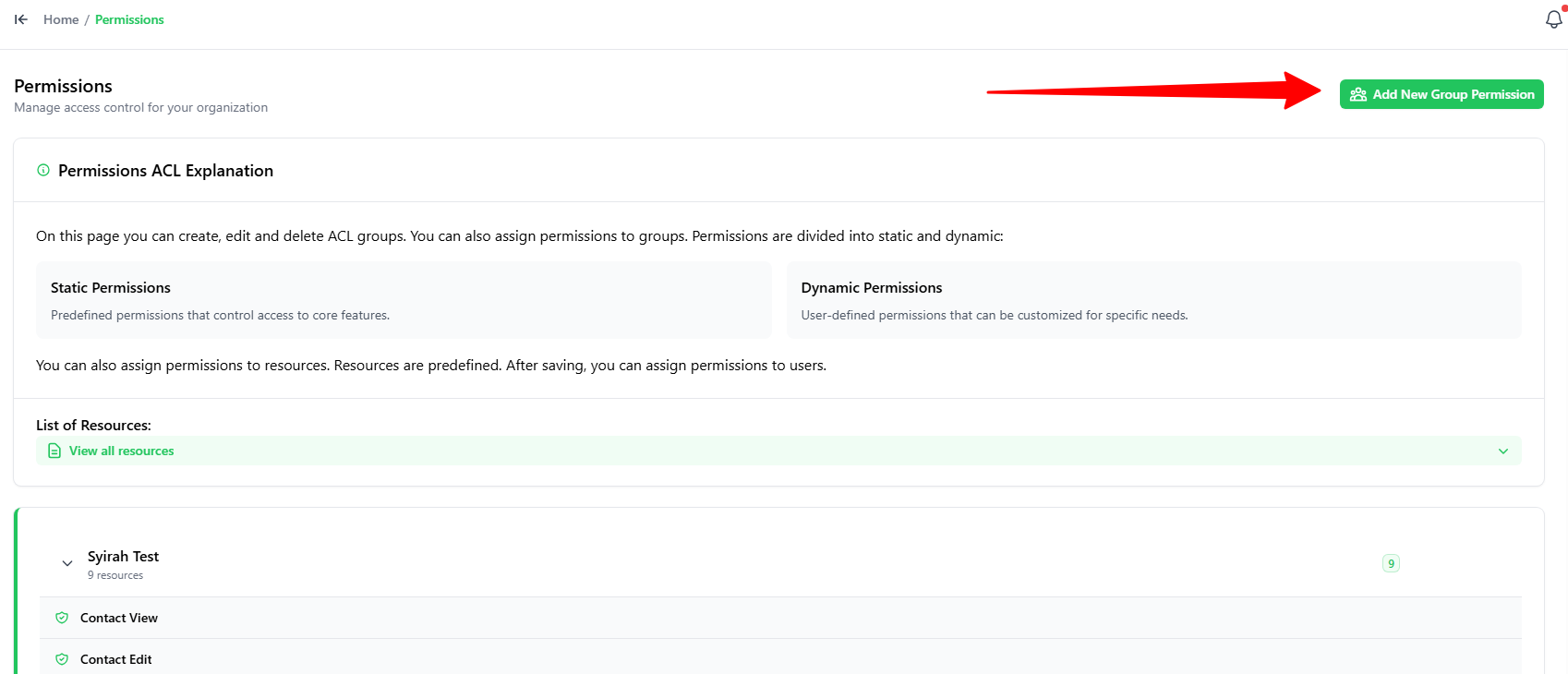
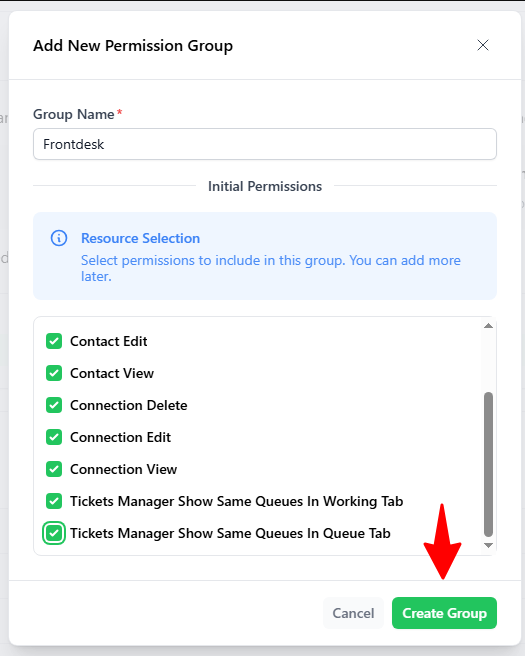
In the Add New Permission Group popup:
- Group Name: Enter a name for the group (e.g.,
Frontdesk). - Initial Permissions: Check the boxes for the actions this group is allowed to perform.
- Click the green Create Group button.
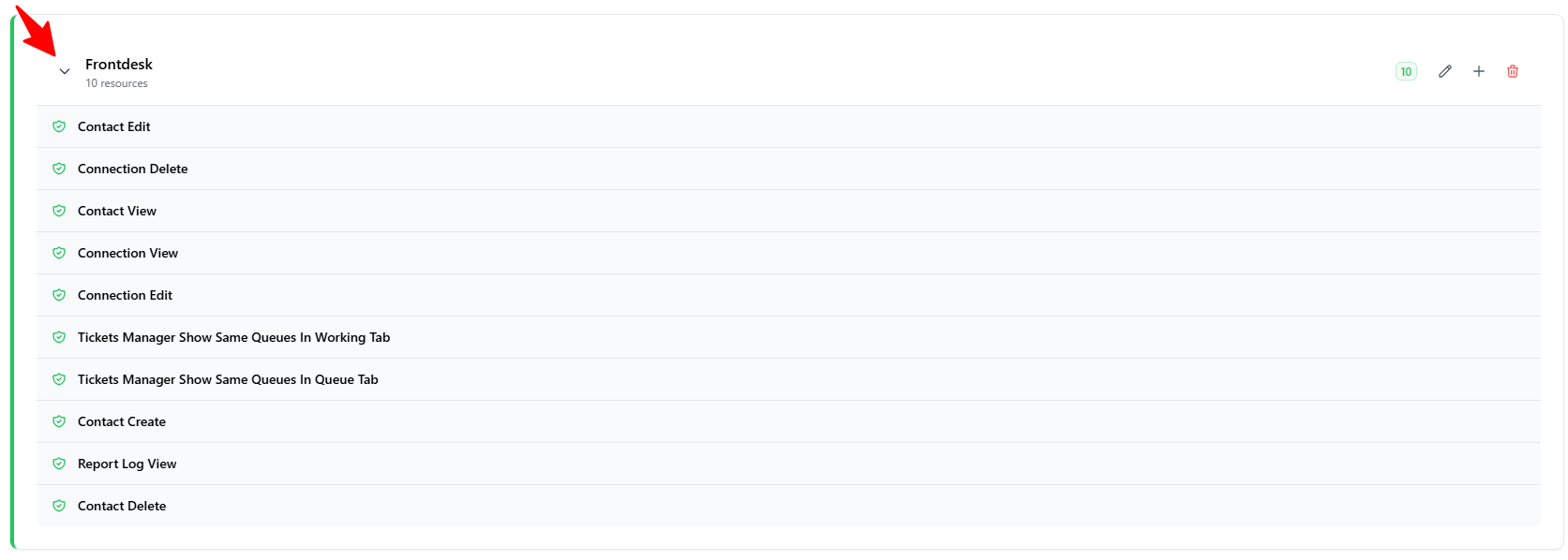
To see what a group is allowed to do:
- Click the Down Arrow next to any permission group card to expand its list of active permissions.
Explaining the Permissions
Here are the specific permissions you can assign to a group and what they allow:
| Permission Name | What it Allows |
|---|---|
| Contact View | View the contact list and contact details. |
| Contact Create | Add new contacts to the system. |
| Contact Edit | Edit or update contact information. |
| Contact Delete | Delete contacts from the contact list. |
| Connection View | View available system/WhatsApp connections. |
| Connection Edit | Edit connection settings. |
| Connection Delete | Delete connections. |
| Tickets Manager Show Same Queues In Working Tab | View tickets from the same queue in the Working On tab. |
| Tickets Manager Show Same Queues In Queue Tab | View tickets from the same queue in the Queue tab. |
| Report Log View | View system reports and activity logs. |