Templates
Quick Overview
The Templates page allows you to manage pre-approved WhatsApp message templates for sending official notifications, marketing blasts, or OTPs. You can sync templates from Meta, preview them, and add new ones.
Syncing & Managing Templates
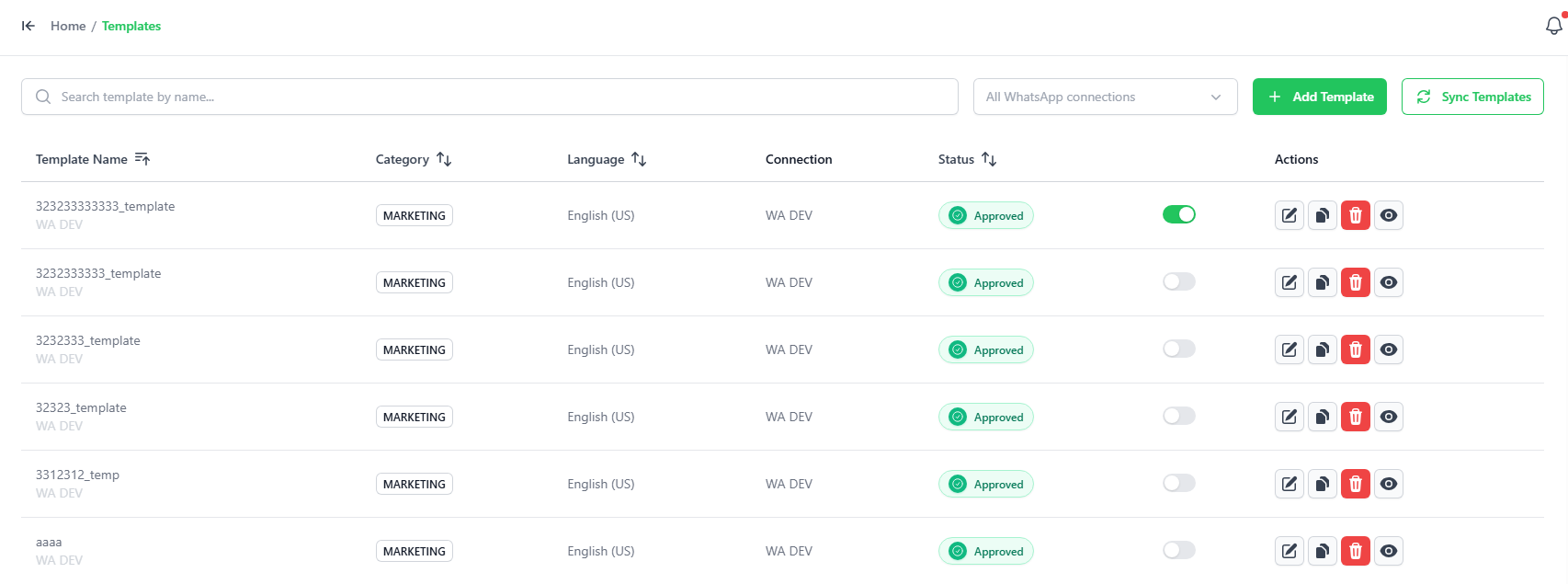
- Sync Templates: Click the green SYNC TEMPLATES button at the top-right to pull in your latest approved templates from Meta.
- Enable/Disable: Use the toggle switches under the Actions column to turn specific templates on or off. Disabled templates cannot be used.
Previewing a Template
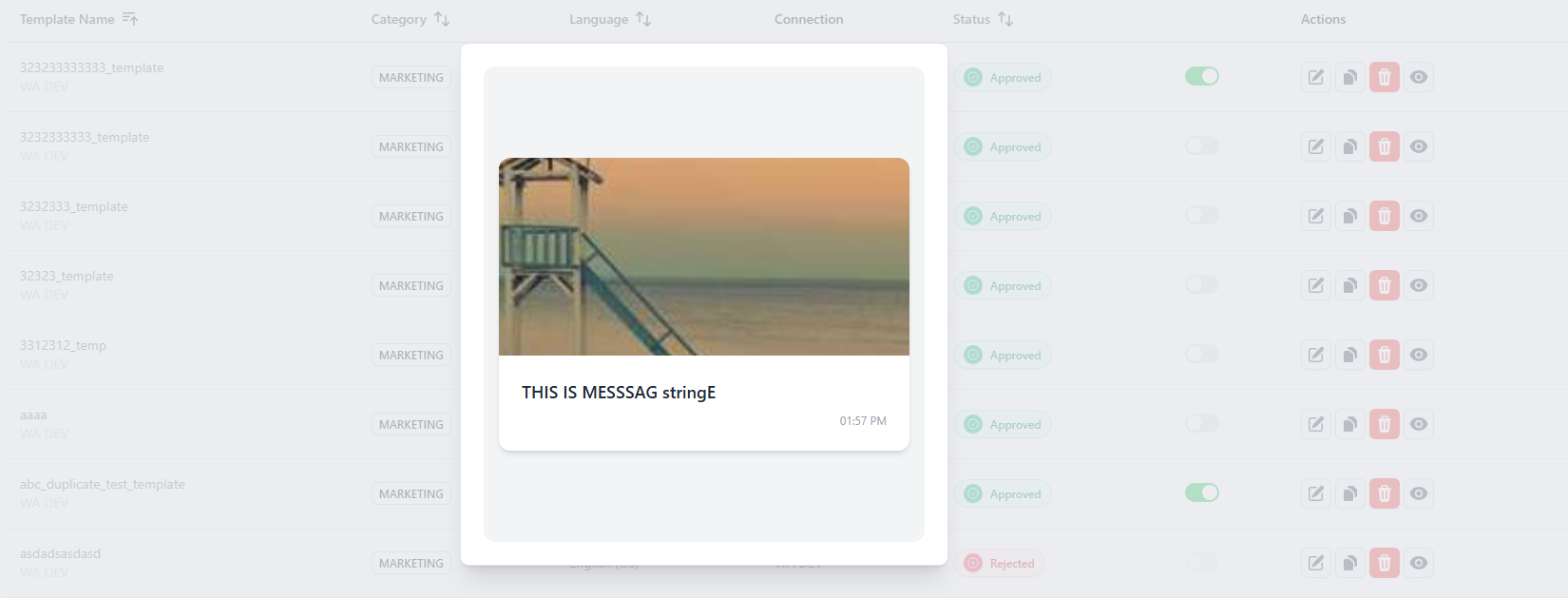
- Click the Eye icon next to any template to see a preview of how the message will look to your customers.
Adding New Templates
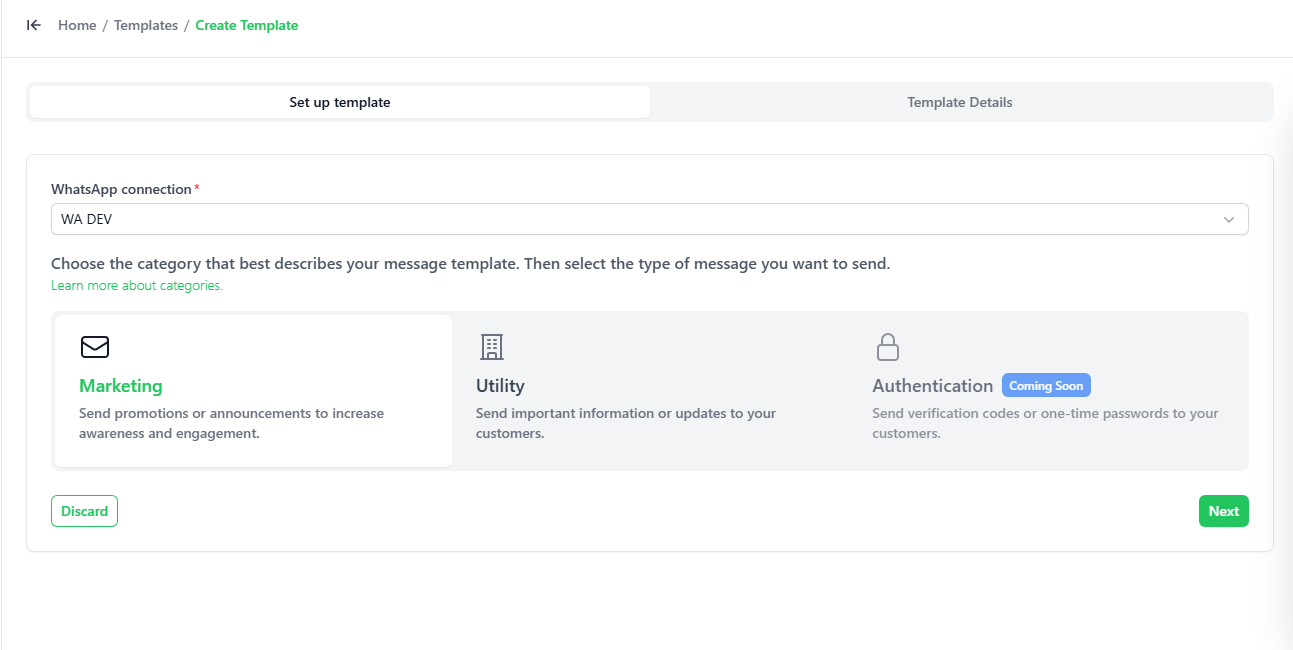
You can create new templates directly from the platform by clicking the + Add Template button.
Templates must fall into one of three official categories:
- Marketing: For promotions, offers, and announcements.
- Utility: For updates like orders, reminders, and notifications.
- Authentication: For OTP or verification messages.